
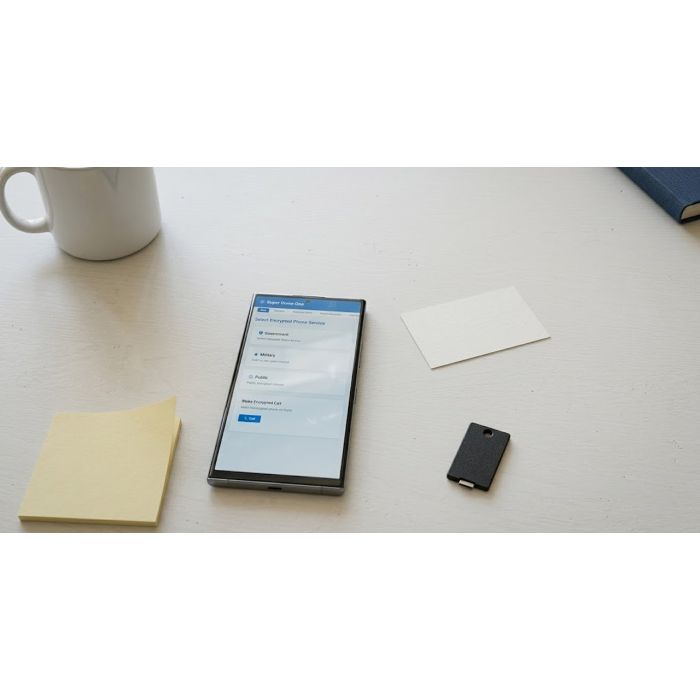
Super Dome Communication Blockchain
Why you'd want it
Source code for an encrypted messaging and blockchain ledger platform, for organisations that want to run their own secure communications.
- Who it's for: government, enterprise and security-focused organisations wanting a self-hosted encrypted communication system.
- The problem it solves: combines encrypted phone, browser access and a ledger in one codebase instead of separate products.
- What you get: Android app, web app, Node.js server and blockchain source code with documentation on encrypted Blu-ray.
Asset valuation: $2,400,000,000. Master index of all projects: PROJECTSINDEX. Status: Production-Ready Platform Super Dome is a comprehensive secure communication platform featuring encrypted phone services, blockchain-based financial systems, and integrated communication technologies. The platform
Imagine a phone call that stays private even when the internet is gone. Super Dome One is an encrypted communication and blockchain platform built for government, military and enterprise users, and it comes in three forms that share one design: a native Android app, a progressive web app that keeps working offline, and a Node.js server that deploys under Docker or Kubernetes. Voice, video, screen sharing, camera and file transfer all travel under AES-256-GCM, end to end, and no cleartext traffic is permitted on any tier. Around the phone sit more than twelve of the inventor's patent systems: a badge system that runs an office inside an office with five access tiers, a kill switch that can shut down cloud zones, a radio-control fallback for when internet and cellular stop, direct phone-to-satellite links, worldwide data conferencing, and an open-idea mode where phones find each other and message directly without a server. Underneath runs the New American Dollar blockchain, a working proof-of-work chain built on 316 money-related inventions and verified for integrity, alongside the LCUS Security Exchange Network for patent-backed financial transactions.
The package is the whole platform: complete source, build scripts, deployment tooling, the blockchain database, architectural diagrams, barcode assets and every document needed to build, test, deploy and commercialize it. It is for a government agency, a defense integrator or an enterprise that wants an encrypted phone and a financial chain under its own roof. The buyer walks away with everything needed to stand it up; the patents and copyright remain with Christopher Gabriel Brown.
Valuation
Pre-production blueprint usage right, patent pending, non-exclusive. The analog this product is closest to in the market is secure communications + blockchain monetary systems — Signal, Telegram, USDC/Circle, with closest sovereign-money analogs in CBDC pilots (digital dollar, digital yuan).
Patent landscape
Blockchain + secure comms IP is moderately dense; sovereign-money infrastructure claims (16-digit identifier systems) are a sparse novel claim space with government-interest leverage.
Market opportunity
- Enterprise blockchain + secure comms: $15B (2026) → $45B (2032).
- CBDC infrastructure: $2B+ nascent but strategic.
Comparable transactions
- Circle Internet Financial IPO (2024): $6B+ valuation.
- Signal (nonprofit): $100M+ Brian Acton seed, strategic positioning rather than commercial.
Estimated valuation range
Realistic clearing band for a non-exclusive blueprint usage right: $2M (research / single-buyer evaluation) → $25M (strategic non-exclusive with manufacturing / deployment rights).
Listed catalog price: $2,357,730,000 — public anchor for direct enquiry; actual clearing price negotiated inside the range above with the buyer, scope (non-exclusive, territory, field-of-use), and milestone structure.
Description
Patents: Chris G Brown 2552, 2551, 2549, 2550 (Encrypted Phone Services); 2291 capture1271 (Badge System); 3435 2896 (Phonology System); 2317 capture1245 (Kill Switch); 2318 capture1244 (Radio Control); 3460, 3461, 3547, 3546 (Satellite Communication); 3453 (Computer Phone); 3468 (Data Conference Worldwide); 3547 (Open Idea App); 3521 (CSV Encryption); 3531 (Real–Time Pure Light Calculations); 3532 (Cloud Cycle Innovation)
Super Dome One is a comprehensive, defence–grade secure communication and blockchain platform designed for government, military, and enterprise use. It integrates 12+ proprietary patent systems into a unified solution spanning three deployment tiers: a native Android mobile application (Kotlin), a Progressive Web App (PWA) for browser–based access, and a production–ready Node.js server infrastructure. The platform incorporates the New American Dollar Secure Blockchain — a real, working proof–of–work blockchain system built on 316 money–related patent inventions — along with the LCUS Security Exchange Network for patent–backed financial transactions. All communications are protected by AES–256–GCM military–grade encryption, and the server layer features a custom binary protocol ( 101010101101110000 ), an AI–powered 411–style operator service, and a unified Service Protocol wrapper.
This package delivers the complete source code, build scripts, deployment tooling, blockchain database, architectural diagrams, barcode assets, and every documentation file needed to build, test, deploy, and commercialise the entire platform.
Android Application Kotlin · Android SDK Namespace: com.chrisgbrown.encryptedphone compileSdk 35 (Android 15) · minSdk 24 (Android 7.0 Nougat) · targetSdk 35 JVM target 17 · Gradle 8.2.0+ · Kotlin 1.9.20+ NDK ABI filters: armeabi–v7a, arm64–v8a, x86, x86_64 ViewBinding enabled · ProGuard minification on release builds Android Studio Hedgehog or later required
Progressive Web App HTML5 · CSS3 · ES6+ JavaScript Offline–capable via Service Worker Web Crypto API for AES–256–GCM WebRTC for encrypted peer–to–peer VoIP PWA manifest: standalone display, portrait orientation Theme colour #1976d2 · Icons at 192×192 and 512×512 px Zero external dependencies — fully self–contained
Server Platform Node.js ≥ 18 · Express 4.18 · SQLite3 ES Module type · WebSocket (ws 8.14) real–time comms Helmet security headers · CORS · Rate limiting (100 req/15 min) JWT authentication (jsonwebtoken 9.0) · bcrypt 5.1 password hashing UUID v9 · dotenv · compression Docker & Kubernetes deployment supported Health–check endpoint at /health
1 Encrypted Phone — Government Chris G Brown 2552 capture1010 AES–256–GCM encrypted phone service for government agencies
2 Encrypted Phone — Military Chris G Brown 2551 capture1011 Military–grade encrypted phone service with enhanced security
3 Encrypted Phone — Public Chris G Brown 2549 capture1013, 2550 capture1012 Encrypted phone service for public civilian use
4 Secure Private Badge System Chris G Brown 2291 capture1271 Office–inside–office access control with tiered badges, firewalls, fences, digital signatures
5 State of Our Art Phonology Chris G Brown 3435 2896 Syllable counting, phoneme extraction, Latin root detection, TTS
6 Kill Switch System Chris G Brown 2317 capture1245 Emergency cloud–zone shutdown with war–data pre–emptive agreements
7 Radio Control System Chris G Brown 2318 capture1244 Fallback radio–frequency comms when internet & cellular stop
8 Satellite Communication Chris G Brown 3460, 3461, 3547, 3546 Direct phone–to–satellite, router–to–satellite bridge, P2P phone connections, 98% uptime target
9 Computer Phone (Multi–Channel) Chris G Brown 3453 Voice, data, screen–sharing, camera, file–transfer channels; conference support
10 Data Conference Worldwide Chris G Brown 3468 Universal sync codes, encrypted real–time data sharing, “one for all, all for one” model
11 Open Idea App Chris G Brown 3547 Phones as pages — peer–to–peer discovery and direct messaging without servers
Key Storage (Android) Android KeyStore Hardware–backed when available; EncryptedSharedPreferences
Server Auth JWT (jsonwebtoken 9.0) + bcrypt 5.1 Token–based authentication with password hashing
An “office inside an office” operating system providing tiered access control with digital badges, secure doors, digital signature authentication, professional logging, and automatic issue identification.
Firewall levels: None → Basic (standard encryption) → Enhanced (advanced encryption) → Maximum (military–grade encryption).
Fence levels: None → Perimeter → Multi–Layer → Maximum.
Features: AES–256–GCM encrypted signatures · SHA–256 hashing for verification · multi–tier access system (Tiers 1–5) · team–based permissions · real–time access verification · complete audit trail · expired–badge detection · multiple–access–denial tracking · unauthorised–attempt monitoring.
Emergency shutdown capability for cloud database zones with war–data pre–emptive agreements and automatic compliance enforcement.
Activation conditions: Threat–level thresholds · data–access attempts · security–breach detection · network intrusion · compliance violations · manual triggers.
Compliance statuses: COMPLIANT (No Service) · NON_COMPLIANT · PENDING · SUSPENDED (No Service).
Provides radio–frequency communication when internet and cellular networks have stopped, operating in zones not incorporated with data.
Frequency ranges: VHF 144–148 MHz (amateur) · UHF 420–450 MHz (amateur) · Emergency 121.5 MHz · War Data configurable per zone.
Communication statuses: ACTIVE · STOPPED (radio control available) · DEGRADED · UNKNOWN.
Kill Switch integration: Automatic activation when kill switch fires; zones switch to radio control mode.
“It sounds like that in a sentence” — advanced sentence analysis, syllable counting, phoneme extraction, Latin–root detection, and text–to–speech with phonology awareness.
Phonology patterns: VOWEL_HEAVY (> 40% vowels) · CONSONANT_HEAVY ( TTS controls: Adjustable pitch 0.5×–2.0× · Adjustable speech rate 0.5×–2.0×.
Latin roots detected: aud, bene, circum, contra, dict, duc, fac, form, ject, mit, port, rupt, scrib, spect, struct, tract, vert, vis, voc, and more.
Syllable rules: Count vowel groups · silent ‘e’ at end excluded · ‘le’ at end adds syllable if preceded by consonant · minimum 1 syllable per word.
Satellite Communication System — Patents 3460, 3461, 3547, 3546
Monitoring: Real–time signal strength · bandwidth & latency tracking · uptime percentage calculation (target: 98%) · connection status management · comprehensive logging.
Computer Phone System — Patent 3453
Supports conference calls with multiple participants. Individual channels can be activated or deactivated during an active call. Includes quality and bandwidth monitoring per channel.
Data Conference Worldwide — Patent 3468
Universal sync codes for joining conferences · encrypted real–time data sharing across all participants · “one for all, all for one” collaborative data sharing model · participant and data tracking · conference status management.
Supported SIP Libraries WebRTC Android AAR, JSIP (jain–sip–ri–1.3.0–91.jar), Linphone SDK, PJSIP (NDK), Jitsi Meet SDK
The Service Protocol (the “underscore” _ ) is the unified wrapper for all server components.
Real–time message types: binary–encode · binary–decode · encrypt · decrypt · ping · subscribe · get_stats · get_balance · new_block · new_transaction .
AI Operator Service (Encrypted 411)
AI–powered operator assistance akin to traditional 411 directory assistance. Handles directory lookups, call routing, and encrypted communications with natural–language processing.
Default directory entries: Emergency Services (911) · Directory Assistance (411) · Super Dome Support (1–800–SUPERDOME).
Request types understood: directory lookups (“What’s the number for …”) · call routing (“Connect me to …”) · information requests (“What is Super Dome?”) · greetings.
Session management: Maintains conversation context per operator session · encrypted request/response support · complete audit logging.
Standard transfers · purchase transactions · payment processing · refunds · module–specific payments (phone calls, badge access, VoIP minutes, satellite service, conference billing, radio service, computer–phone fees) · mining rewards.
Blockchain Database Schema
SQLite tables: blocks (all blockchain blocks) · transactions (all transactions) · balances (address balances) · receipts (transaction receipts). Automatic schema creation · indexed queries · foreign key relationships.
Distributed Ledger Blockchain–based immutable ledger · Proof–of–Patent (PoP) consensus · T+0 settlement · AES–256 + RSA–4096 encryption
Asset Management Invention Deposition Tokens (IDT) · patent–backed financial instruments · fractional ownership · real–time valuation
Security Multi–signature authorisation · patent–authenticated identity · real–time fraud detection · immutable audit trail · Byzantine fault tolerance
Exchange Order matching engine · real–time price discovery · automated market making · liquidity pools · cross–chain compatibility
Node types: Financial Asset Nodes (FAN) · Validator Nodes (VN) · Exchange Nodes (EN) · Security Nodes (SN).
Transaction rules: Minimum $0.01 · fee 0.1% · T+0 settlement · USD with multi–currency support.
Order types: Market · Limit · Stop–Loss · Take–Profit · 24/7 trading.
LCUS IP Financial Services Platform (LCUS–FIN–001)
Total IP Value: $809,052.00 · Total Inventions: 316 money–related patents · Core Modules: 8
2. Payment Processing Engine 12 Cloud–separated commerce encryption, tax handling, multi–currency
3. Banking Security & Monitoring 46 Real–time bank monitoring, monetary status alarms, political jeopardy detection
4. Global Market Exchange 88 Real–time market data, trade execution, environmental welfare integration
5. Secure Monetary Transfer 22 Bank–to–bank transfers, ownership verification, multi–bank support
6. Cryptocurrency Security 1 Bitcoin security validation, coin–worth verification
7. Retail Commerce Platform 10 Credit card processing, local web connections, retail transactions
8. Financial Automation 2 Automated cost tracking, payment sheet automation, predictive learning
Deployment options: Local/on–premise (systemd service) · AWS Elastic Beanstalk · Docker · Kubernetes (3 replicas recommended) · Hybrid.
Android permissions required: CALL_PHONE · READ_PHONE_STATE · RECORD_AUDIO · INTERNET · FOREGROUND_SERVICE · CAMERA · MICROPHONE (web).
Government / Military $150,000 – $1,000,000+/year Unlimited users, all patent systems, military–grade encryption, 24/7 premium support, on–premise or cloud, custom development (up to 500 hrs/yr)
Defence Contractor $250,000 – $1,000,000/year Enterprise–wide, all systems, integration support, white–label & OEM options
Enterprise Security $75,000 – $500,000/year All systems, cloud or on–premise, standard support, SLA guarantees
Per–User Add–On $200 – $2,000/user/year Additional user seats beyond base licence
Perpetual licence option: $2,000,000 – $5,000,000 one–time (Government/Military) with 20% annual support.
Estimated market valuation: $2.5M – $15M+.
Web Application System Modules
The PWA includes 10 fully integrated system modules, each implemented as a standalone JavaScript file under web/systems/ :
Additional web–tier files: app.js (main application logic) · encryption.js (encryption manager) · webrtc.js (WebRTC VoIP) · service–worker.js (PWA offline support) · styles.css (responsive design) · manifest.json (PWA manifest) · index.html (main HTML).
The file 1 light trigger.txt (1,770 lines) contains the complete catalogue of invention depositions underpinning the platform’s patent portfolio, including descriptions, patent numbers, and product image URLs for each invention. The catalogue covers technologies spanning nanophotonics, encrypted communications, satellite systems, energy generation, chip fabrication, fuel chemistry, broadcasting, blockchain, financial systems, and more.
blueprints/autorun.inf Disc autorun — opens NAVIGATION.html ; label “Super Dome One – Project Navigation”
superdome_blockchain.py Core blockchain engine — mining, transactions, Merkle trees, chain verification
american_dollar_blockchain.json Exported blockchain data — complete transaction history, balances, statistics
security_exchange_network.json Complete network configuration, registered assets, network nodes
network_ledger.json Complete blockchain ledger — all transactions, block chain history
receipt_*.json (5 files) Transaction receipts: 4643325E5D83A235 , 4BAE423AFFB8BC98 , 800FD593BD5A6286 , ED1E5C7B47501368 , REWARD–2
The package includes 32 PNG screenshots documenting development progress, dated from 17 November 2025 through 7 December 2025, stored in handoffs/american–dollar–blockchain/TMP Screenshots–/ .
Markdown documentation ( .md ) 76 System specifications, integration guides, business plans, compliance docs, deployment guides, setup instructions, entity summaries, test results, valuation analyses
Python scripts ( .py ) 14 Blockchain core, security exchange, financial analysis, tests, simulations
JavaScript source ( .js ) 14 Web app modules, server entry, encryption, WebRTC, service worker, deploy scripts
JSON data/config ( .json ) 14 Blockchain data, ledgers, receipts, manifests, package config, IP platform data
SVG diagrams ( .svg ) 8 Architecture, deployment, protocol flow, blockchain logo, block diagram, status indicators, transaction flow
- blueprints/ — Architecture docs, build scripts, compliance guides, blockchain scripts, SVG diagrams, Python analysis tools, JSON data, HTML navigation & sales pages, Gradle configuration
- handoffs/app/ — Android application (build.gradle.kts, ProGuard rules)
- handoffs/web/ — Progressive Web App (HTML, CSS, JS, system modules, manifest, service worker)
- handoffs/server/ — Node.js server platform (source, Dockerfile, docker–compose, deployment docs, government purchase guide)
- handoffs/american–dollar–blockchain/ — Blockchain system (ODF data, invention catalogue, formula classifier, test analysis, security exchange, screenshots)
- handoffs/american–dollar–blockchain/super–dome/ — Superdome blockchain integration (blockchain complete docs, entity summary, valuation, sales page, navigation)
How this is delivered
This package ships on a single Blu-ray disc, posted to the delivery address on your order. The archive on the disc is AES-256 encrypted; the passphrase is sent separately, by email, once the disc is despatched — so the disc alone is of no use to anyone who intercepts it.
Discs are despatched by tracked, signed-for post. Allow 5 business days for mastering and verification before despatch.
© 2026 Christopher Gabriel Brown
Footnotes
- Product number 8451.
- Family: dome money.
- Purchase: When you buy, you buy the use of that blueprint only.
-
 One Touch Pagers
One-button voice pagers for keeping families in touch.
-
 War Satellite
A satellite platform for space-based protection and secure links.
-
 Smart Shoe Platform
Smart-shoe software that tracks steps, place and foot pressure.
-
 Electric Jet
An electric torque-plate jet engine, archived for aerospace review.
-
 AutoPhi Electromagnetic IC
A chip switching with light, magnetism and electrons together.
-
 Alchemy Data Three
The third-generation compound research engine and its patent draft.