
LAN Lifeline — Share Folders Between Home PCs
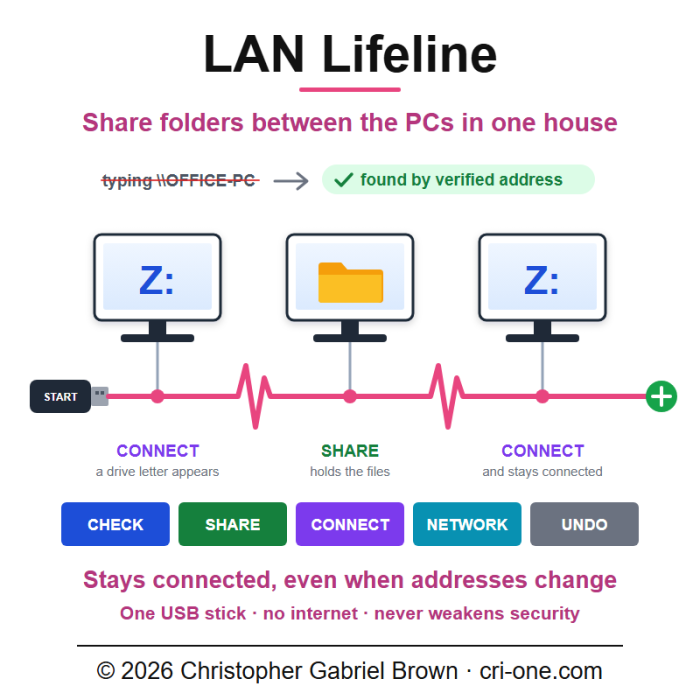
The files are on the other PC. The other PC is right there, down the hall. And still the window says it cannot be found. LAN Lifeline does not ask the router for names. It knocks on doors, and a PC counts as found only when the folder answers with its own small ID. When the address changes in the night, it knocks again until it finds the same folder. One stick. Five buttons: CHECK, SHARE, CONNECT, NETWORK, UNDO. A drive letter, a shortcut on the desktop, and a small round light by the clock: green, orange, red. It never opens a door it cannot close again. Use of this blueprint only. No IP sold. Not sublicensable.
Saturday afternoon
The photos are on the PC in the den. The laptop in the kitchen needs them. Both PCs work, both are on the Wi-Fi, both reach the internet. You open File Explorer, click Network, and the den PC is not there. You type its name with two backslashes in front, and Windows says it cannot find it. You try again next week, with someone watching, and it fails again. Nothing is broken on either PC. The network between them is lying to you.
What it is
LAN Lifeline is a folder-sharing tool for the Windows 10 and Windows 11 PCs of one household or one small building. It runs straight from a USB stick (or any folder) and uses only what Windows already has: Windows PowerShell 5.1 and its own windows and buttons. There is no installer, no account, no cloud service, and no internet connection needed at any point. Every part of it is plain text you can open in Notepad and read before you run it. One zip, about 75 KB, SHA-256 published.
The window has five buttons. CHECK tests the whole chain and says in plain words which link is broken. SHARE, on the PC that holds the files, shares one folder safely. CONNECT, on every PC that needs the files, gives that folder a drive letter and a Desktop shortcut. NETWORK puts what the helpers on each connected PC have seen into one table: which PCs answered, at which address, and when. UNDO takes back what was set up on that PC.
Why the old way keeps failing
LAN Lifeline was built after exactly the Saturday above. Measured on a real home network, three things were going wrong at once, and all three are common:
- Two routers in a row. A Wi-Fi mesh or second router plugged into the internet provider's box makes two separate networks. A PC on the provider's box cannot reach a PC behind the second router, and nothing on screen tells you so.
- A router that gives wrong answers. Ask for a PC by name and the router can hand back an old address where nothing answers any more. The PC is fine; the name points to the wrong place.
- A mesh that hides PCs. Mesh satellites often drop the broadcasts Windows uses to fill the Network list, so PCs never show up there.
LAN Lifeline does not depend on any of that. It never trusts a PC name. It knocks on addresses directly, and a PC only counts as found when a small hidden ID file inside the shared folder proves it is the right one. When a PC gets a new address, LAN Lifeline finds it again by itself.
Ten minutes in
On the PC that holds the files you plug in the stick, double-click START HERE and press SHARE. You pick the folder, choose a sharing password, and answer Yes once when Windows asks for administrator permission. Then you carry the stick to the kitchen laptop, press CONNECT, pick the den PC from the list, type the same password, and press Connect. A new drive letter appears, and a shortcut lands on the Desktop. Many PCs? Any PC can share, any PC can connect to several, and with one password on all of them, CONNECT can link to every PC in the list at once.
The week after
CONNECT leaves a small round light near the clock. Green means connected. Orange means it is working on it, or only some folders are connected. Red means not connected, and a right-click offers Reconnect now. The helper behind that light keeps a copy of itself in your user profile, so it works with the stick unplugged and starts again at every sign-in. If the den PC is asleep, the light says so, and the folder comes back by itself once the PC wakes. If the router gives the den PC a new address, LAN Lifeline sweeps the local network, finds the ID file again, and re-maps the drive. It never tears down a working connection just because the other PC is quiet for a moment.
When something looks wrong
Press CHECK. It changes nothing. It looks at the cable or Wi-Fi, the PC's address, the router, the internet (which file sharing does not need), whether there are two routers in a row, whether Windows thinks this is a Public network, whether another security program runs its own firewall, the folders shared from this PC, the Windows file server service and firewall, sleep settings, the other PCs, wrong name answers, mesh satellites, and every connected folder. Each line is marked OK, INFO, WARN or FAIL, and each says what to do in plain words, for example "that PC did not answer anywhere on this network" (it is off, asleep, or on the other router) or "turned the sharing password down" (press SHARE there again). Every check is saved as a text file on the stick, one folder per PC, so whoever helps you can see exactly what was tested and what failed. If two routers are in a row, CHECK names both and tells you which one every computer should be joined to.
What SHARE changes, and what it will never do
On the PC that shares, and only there, SHARE needs administrator rights once. It creates one sharing-only account named after that PC. The account belongs to no group, is kept off the sign-in screen, and cannot sign in at the keyboard; it can only open the shared folder. It shares the folder you picked with that account only. It adds its own Windows Firewall rules that let PCs from this local network reach file sharing; the built-in rules are not touched. It marks the network as Private if Windows had it as Public, makes sure the Windows Server service starts with Windows, and, if you tick it, keeps the PC from sleeping while plugged in. Every one of those changes is written into a journal on that PC, and UNDO restores the previous values. Shared folders and files are never deleted.
What it will never do: switch on the old, unsafe SMB1; allow password-less guest access; switch off the firewall or SMB signing; set fixed IP addresses; or reset the network. CONNECT needs no administrator rights at all. It stores the sharing password encrypted for your own Windows account only, and the pairing files it carries on the stick never contain a password.
What it is not
It is not a VPN and it does not reach your PCs over the internet. It is not cloud sync and not a backup; it opens the same folder from several PCs, it does not make copies. It does not join two networks together: if two routers sit in a row, PCs on different sides still cannot reach each other, and LAN Lifeline tells you which ones to move. It cannot share from a PC that is switched off or asleep. It does not run on Mac, Linux, phones or tablets. It cannot fix a broken cable or a Wi-Fi that does not connect, though CHECK will say that is where the problem is. It is not a managed or office network product: domain networks and company PCs with their own policies were not its target, and their administrators may not allow the changes SHARE makes.
Who it is for
One household, or one small building, with a few Windows 10 or Windows 11 PCs that need to open the same folders, and one person who is the family's or the shop's computer helper. Built for the person who has to make it work in front of everyone, and then leave it running for people who will never open a settings page.
What ships
One folder, LanLifeline: the START HERE launcher, a README in plain language, eleven PowerShell scripts in app (window, tray helper, network checks, sharing, and the NETWORK view), a text-mode CHECK for PCs where the window will not open, and in tests a layout renderer and the administrator self-test. The folders for pairing files, reports and state ship empty; they fill as you use it. A notes file for AI coding assistants explains the design rules, and LICENSE.md holds the terms. Requirements: Windows 10 or 11 with its built-in Windows PowerShell 5.1, administrator rights on each PC that shares, and the PCs joined to the same router.
Honest status
Built in September 2026 for one household's PCs, on a network with two routers in a row, a router that answered names wrongly, and mesh satellites, and in use there since. The administrator self-test (share, connect, write a file through the drive, lose and re-find the PC at a wrong old address, reject a wrong password without locking the account, undo everything) passed 27 of 27 checks on 24 October 2026. That test runs on one PC talking to itself, which Windows Firewall does not filter, so the firewall rules are only proven from a second PC. Not externally reviewed. Not security-audited. The interface is English only and is deliberately drawn at a fixed size, so text can look slightly soft on high-resolution screens. Sold by Christopher Gabriel Brown, a sole proprietor doing business as CRI-ONE. The contract names him personally.
License
Use of this blueprint only · No IP sold · Not sublicensable
You may copy it onto your own USB sticks and the PCs of your own household or building, run it there, read it, and change it for your own use. You may not sublicense, resell, publish, redistribute, assign or transfer it, except as part of a bona fide sale of your household property or business as a whole.